Transform your XBMC/Kodi into a powerful entertainment hub! This guide unlocks live TV, radio, and electronic program guide features within the Kodi interface.
What is XBMC/Kodi?
XBMC, now widely known as Kodi, represents a remarkably versatile open-source media player. Initially created as a modification of Xbox Media Center, it has evolved into a cross-platform application compatible with various operating systems like Windows, macOS, Linux, and Android.
Kodi’s core strength lies in its ability to organize and play a vast array of digital media, including videos, music, podcasts, and, crucially for our discussion, live TV. Its open-source nature fosters a vibrant community of developers and users, resulting in extensive customization options through add-ons and skins.
Why Use a TV Guide with Kodi?
Integrating a TV guide with Kodi dramatically enhances the viewing experience, transforming it from a simple media player into a comprehensive entertainment system. Without a guide, navigating live TV channels feels cumbersome and lacks the convenience of knowing what’s currently airing or scheduled for later.
An Electronic Program Guide (EPG) provides program listings, descriptions, and schedules, mirroring the functionality of traditional cable or satellite boxes. This allows for effortless channel surfing, scheduled recordings, and a more informed viewing experience, maximizing Kodi’s potential.

Setting Up the Backend: TV Server Options
Explore various backend options for live TV, including IPTV providers, DVB-T/S/C tuners, and the Home TV Streaming Protocol (HTSP) for seamless integration.
IPTV Providers and Services
Leveraging IPTV (Internet Protocol Television) offers a flexible way to access live TV channels through your internet connection. Numerous providers exist, varying in channel lineups, pricing, and reliability. Researching and selecting a reputable IPTV service is crucial for a stable streaming experience within Kodi.
Consider factors like channel packages, video quality (HD/SD), server stability, and customer support. Many IPTV providers require a subscription and often utilize M3U playlist URLs, which you’ll input into Kodi. Ensure the provider supports Kodi compatibility for optimal performance and channel access. Thoroughly vet providers before committing to a service.
Using a DVB-T/S/C Tuner
For those preferring traditional broadcasting, a DVB-T/S/C tuner connects to your antenna or satellite dish, enabling live TV viewing within Kodi. These tuners capture digital signals and stream them to Kodi via a backend like TVHeadend or MythTV. Compatibility is key; ensure your tuner is supported by your chosen backend.
Proper driver installation and configuration are essential for optimal performance. The backend software manages channel scanning, recording, and EPG data. This method provides a reliable, free-to-air TV experience, dependent on signal strength and available channels in your region.
Home TV Streaming Protocol (HTSP) Setup
HTSP facilitates streaming live TV content from a backend server to Kodi, regardless of the operating system. This protocol enables viewing on various devices, making it incredibly versatile. Setting up HTSP involves installing and configuring a backend server – TVHeadend is a popular choice – and then configuring Kodi to connect to it.
Ensure the server and Kodi device are on the same network. HTSP offers a flexible solution for accessing live TV, especially when using OpenELEC or other Linux-based Kodi distributions. Proper network configuration is crucial for smooth streaming.

Configuring Kodi for Live TV
Access live TV within Kodi by adding a TV source and selecting the appropriate backend. Channel scanning organizes your channels for easy viewing and access.
Adding a TV Source in Kodi
Initiate live TV functionality by navigating to the Kodi settings and selecting the “TV” section. From there, choose “TV channels” and then “Add source.” You’ll be prompted to select the backend you’ve configured – IPTV, DVB-T/S/C, or HTSP.
Browse to the correct location of your TV source, whether it’s a network path for HTSP or the specific settings for your IPTV provider. Kodi will then ask you to name the source for easy identification. Confirm your selections, and Kodi will begin to process the TV source.
Selecting the Appropriate Backend
Choosing the right backend is crucial for a seamless Kodi TV experience. If you subscribe to an IPTV service, select the IPTV backend and input the provider’s M3U playlist URL. For terrestrial, satellite, or cable TV, utilize the DVB-T/S/C backend, requiring a compatible tuner connected to your system.
Alternatively, if you’re streaming TV from a local server, HTSP is the ideal choice. Consider your setup and available hardware when making your selection, ensuring compatibility for optimal performance and channel access.
Channel Scanning and Organization
After selecting your backend, initiate a channel scan within Kodi. This process identifies available channels from your chosen source – IPTV stream, DVB tuner, or HTSP server. The scan duration depends on the number of channels and signal strength.
Once completed, Kodi presents a list of discovered channels. Organize them logically by creating custom channel groups (e.g., News, Sports, Movies) for easy navigation. You can also manually reorder channels to match your preferences, enhancing the viewing experience.

Electronic Program Guide (EPG) Sources
Enhance your Kodi experience with an EPG! Sources include XMLTV files and online providers, delivering program schedules directly within the Kodi TV guide interface.
XMLTV and Online EPG Providers
XMLTV is a widely-used open standard for television program listings, offering a flexible way to populate your Kodi TV guide with detailed schedule information. Numerous online providers offer XMLTV feeds, often region-specific, ensuring accurate program data for your location.
These providers deliver the EPG data directly to Kodi, eliminating the need for manual file management. Popular options include readily available services, though reliability and content coverage can vary. Selecting a provider that aligns with your channel lineup is crucial for optimal EPG functionality within Kodi.
Local XMLTV File Setup
For users preferring localized control, setting up a local XMLTV file provides a robust EPG solution. Download an XMLTV file from a reliable source, ensuring it corresponds to your region and channel lineup. Within Kodi’s settings, navigate to the EPG section and specify the path to your downloaded XMLTV file.
Kodi will then parse this file, populating the TV guide with program information. Regularly updating the local file is essential to maintain accurate listings; automated download scripts can simplify this process. This method offers greater customization and independence from online services.
EPG Auto-Update Configuration
Maintaining an up-to-date EPG is crucial for accurate program listings. Kodi allows for automated EPG updates, ensuring your guide remains current. Within the EPG settings, configure the auto-update interval – typically every few hours is recommended. Specify the URL of your chosen XMLTV provider or the location of your local XMLTV file.
Enable the auto-update feature, and Kodi will periodically refresh the guide data in the background. Regularly verify that updates are occurring successfully to avoid outdated information. This automated process streamlines EPG management.

Customizing the Kodi TV Guide Experience
Personalize your Kodi TV guide with layout and display options! Enjoy features like live TV recording and timeshifting for enhanced playback control.
Guide Layout and Display Options
Kodi offers extensive customization for the TV guide’s appearance and functionality. Users can adjust the guide’s layout, choosing between different views to prioritize channel listings or program information. Display options allow modification of channel numbering, hiding unwanted channels, and altering the color scheme for improved visibility.
Furthermore, you can configure how program information is presented, including displaying descriptions, start/end times, and even artwork. These settings cater to individual preferences, ensuring a comfortable and informative viewing experience. Experiment with these options to create a TV guide perfectly tailored to your needs.
Recording Live TV
Kodi, when properly configured with a PVR backend, enables seamless live TV recording. Users can schedule recordings directly from the electronic program guide (EPG), selecting individual programs or setting up recurring series recordings. The recording quality is typically determined by the backend’s settings and available storage space.
Recordings are stored locally on your device or network storage, accessible through Kodi’s video library. Managing recordings—deleting, renaming, or moving files—is straightforward within the Kodi interface. This feature transforms Kodi into a powerful personal video recorder, offering convenient time-shifting capabilities.
Timeshifting and Playback Features
Kodi’s timeshifting functionality allows pausing live TV, effectively creating a temporary buffer. This enables viewers to interrupt programming without missing content, resuming playback from the exact point it was paused. Coupled with recording capabilities, timeshifting enhances the viewing experience significantly.
Playback features include rewind, fast-forward, and replay, providing granular control over live broadcasts. Kodi seamlessly integrates recorded TV shows into its video library, offering familiar playback options. These features combine to deliver a flexible and user-friendly live TV experience.

Troubleshooting Common Issues
Resolve frequent problems like EPG loading failures, channel playback errors, and connectivity issues to ensure a smooth Kodi live TV experience for optimal viewing.
EPG Not Loading
Experiencing issues with your Electronic Program Guide (EPG)? First, verify your internet connection is stable, as most EPG sources require online access for updates. Double-check the XMLTV path within Kodi’s settings, ensuring it accurately points to your EPG file or online source.
Confirm the XMLTV file isn’t corrupted or outdated. Try manually refreshing the EPG within Kodi’s Live TV settings. If using an online provider, confirm their service is operational. Sometimes, clearing Kodi’s cache can resolve loading problems. Lastly, ensure your time and timezone settings are correct, as discrepancies can prevent proper EPG loading.
Channel Playback Problems
Encountering difficulties playing live TV channels? Begin by verifying your TV server (IPTV provider, DVB-T tuner, or HTSP) is functioning correctly and broadcasting signals. Check your network connection; a weak or unstable connection can cause buffering or playback interruptions.
Within Kodi, ensure the correct backend is selected and the channel list is up-to-date. Try rescanning channels. If using IPTV, confirm your subscription is active. Consider hardware acceleration settings within Kodi – enabling or disabling it might resolve compatibility issues. Finally, examine Kodi’s logs for specific error messages.
Connectivity and Server Errors
Experiencing connection issues or server errors with your Kodi TV guide? First, verify your internet connection is stable and functioning correctly. Confirm your TV server (IPTV, DVB-T/S/C, or HTSP) is online and accessible. Check the server’s status page, if available, for reported outages.
Within Kodi, ensure the backend settings are accurate, including server address and port. Examine Kodi’s log files for specific error messages related to connectivity. Restarting Kodi and your TV server can often resolve temporary glitches. Firewall settings might also be blocking the connection.

Advanced Kodi TV Guide Features
Explore advanced features like channel grouping, parental controls for live TV, and seamless integration with various PVR clients to enhance your Kodi experience.
Grouping Channels
Kodi allows for sophisticated channel organization through grouping, enhancing navigation and user experience. This feature enables users to categorize channels based on genre – such as news, sports, movies, or kids’ programming – creating customized viewing lists. Grouping simplifies access to preferred content, eliminating endless scrolling through extensive channel lineups.
To implement channel grouping, navigate to the PVR settings within Kodi and access the channel management section. Here, you can create custom groups and assign channels accordingly. This functionality is particularly useful for families or individuals with specific viewing preferences, streamlining the live TV experience and making content discovery effortless.
Parental Controls for Live TV
Kodi offers robust parental control features to manage live TV access, ensuring a safe viewing environment for families. These controls allow restricting channels based on content ratings, preventing children from accessing inappropriate programming. You can set up PIN codes to unlock restricted channels, providing an extra layer of security.
Access parental control settings through Kodi’s system settings, navigating to the PVR & Live TV section. Configure channel restrictions and PIN codes according to your preferences. This feature is invaluable for households with young children, offering peace of mind and responsible content management within the Kodi ecosystem.
Using Kodi with PVR Clients
Kodi’s power truly shines when integrated with PVR (Personal Video Recorder) clients, expanding its live TV capabilities. PVR clients act as backends, handling channel tuning, EPG data, and recording functionalities. Popular options include TVHeadend, MythTV, and NextPVR, each offering unique features and compatibility.
To connect a PVR client, configure Kodi’s PVR settings, specifying the client’s address and connection details. This unlocks advanced features like time-shifting, series recording, and a comprehensive TV guide; Utilizing a PVR client transforms Kodi into a fully-fledged media center with robust live TV support.

Optimizing Performance for Live TV
Boost Kodi’s live TV performance through cache optimization, hardware acceleration, and network adjustments. These techniques ensure smooth playback and minimize buffering issues for a seamless experience.
Kodi Cache Optimization
Kodi’s cache plays a vital role in smooth live TV streaming. Regularly clearing the cache prevents slowdowns caused by accumulated temporary files. Adjusting cache settings, like increasing the video cache size, can buffer more content, reducing interruptions during playback, especially with unstable network connections.
However, an excessively large cache can consume significant system resources. Experiment to find the optimal balance for your hardware and internet speed. Utilizing advanced settings within Kodi allows fine-tuning of cache parameters for personalized performance gains. Remember to reboot Kodi after making changes.
Hardware Acceleration
Leveraging hardware acceleration significantly boosts Kodi’s live TV performance. Enabling this feature offloads decoding tasks from the CPU to the GPU, resulting in smoother playback and reduced CPU load. Kodi supports various acceleration methods, including DXVA2, VAAPI, and MMAL, depending on your hardware and operating system.
Proper configuration is crucial; incorrect settings can lead to instability or visual artifacts. Experiment with different acceleration options within Kodi’s settings to identify the optimal configuration for your specific setup. Ensure your graphics drivers are up-to-date for best results.
Network Considerations
A stable and robust network is paramount for seamless Kodi live TV streaming. Wireless connections can be prone to interference and buffering, especially with high-bitrate channels. A wired Ethernet connection is strongly recommended for optimal performance and reliability.
Ensure sufficient bandwidth is available, particularly if multiple devices are simultaneously using the network. Consider Quality of Service (QoS) settings on your router to prioritize Kodi traffic. Regularly check your network speed and stability to identify potential bottlenecks impacting live TV playback.
Alternatives to Standard Kodi TV Guide
Explore add-ons for enhanced EPG data and consider third-party PVR clients to customize your Kodi live TV experience beyond the standard guide.
Add-ons for Enhanced EPG
Numerous Kodi add-ons significantly improve the Electronic Program Guide (EPG) functionality, offering features beyond the standard guide. These add-ons often provide more detailed program information, including synopses, cast details, and even user ratings. Some popular choices focus on specific regions, delivering highly accurate and localized EPG data.
Others specialize in aggregating data from multiple sources, ensuring comprehensive coverage. Installation is typically straightforward through Kodi’s add-on repository. Remember to research add-on compatibility and reliability before installing, as quality can vary. Regularly updating these add-ons is crucial for maintaining accurate and up-to-date program listings.
Third-Party PVR Clients
Beyond Kodi’s built-in PVR capabilities, several third-party clients offer alternative approaches to live TV viewing and EPG management. These clients often integrate seamlessly with Kodi, providing a unified experience. Options like TVHeadend and NextPVR are popular choices, particularly for users with advanced setups or specific hardware configurations.
They frequently support a wider range of tuner cards and streaming protocols. Setting up these clients typically involves a separate installation process and configuration, but can unlock enhanced features and customization options. Researching compatibility with your hardware and desired features is essential before choosing a third-party PVR client.

Future Trends in Kodi TV Guide
Expect integration with streaming services and AI-powered EPG recommendations to revolutionize Kodi’s TV guide, offering personalized and intelligent content discovery experiences.
Integration with Streaming Services
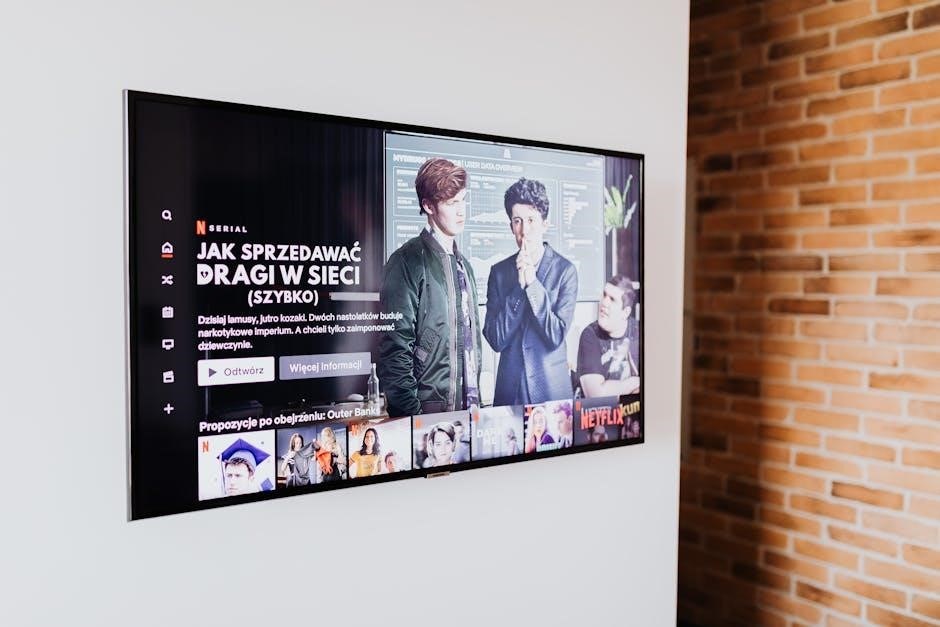
The future of Kodi TV guide functionality likely involves seamless integration with popular streaming platforms. Imagine a unified EPG displaying content from services like Netflix, Hulu, and Disney+ alongside live TV channels. This convergence would allow users to browse and launch content from all sources within the familiar Kodi interface.
Such integration requires overcoming technical hurdles, including API access and authentication protocols. However, the benefits – a centralized entertainment hub and simplified user experience – are substantial. Expect to see add-ons and potentially native Kodi features facilitating this connectivity, transforming Kodi into a truly universal media center.
AI-Powered EPG Recommendations
Future Kodi TV guides will likely leverage artificial intelligence to personalize program recommendations. AI algorithms can analyze viewing habits, preferred genres, and even time of day to suggest relevant content from both live TV and on-demand sources. This goes beyond simple genre-based suggestions, offering truly tailored viewing experiences.
Imagine an EPG that proactively highlights shows you’re likely to enjoy, learning your tastes over time. This intelligent curation will reduce channel surfing and enhance content discovery, making Kodi an even more compelling entertainment platform. Expect smarter search and personalized program listings.